
Webhooks
This guide explains how to set up automated notifications so your system knows exactly when a payment is processed through Helcim.
Helcim provides webhooks to keep your software in sync with the Helcim system. A webhook (a way for one app to send real-time data to another) ensures that when a customer taps , inserts or enters their credit card information, your system receives an immediate update after a payment has been processed.
How webhooks work
When you process a payment through any Helcim payment tool, Helcim sends a message to a specific URL that you provide. This can happen for both approved and declined payments, as well as payments that are cancelled on a payment hardware device in API mode. For example by using webhooks, you can automatically update your customer's order status or trigger a receipt without manual checks.
Configuring webhooks
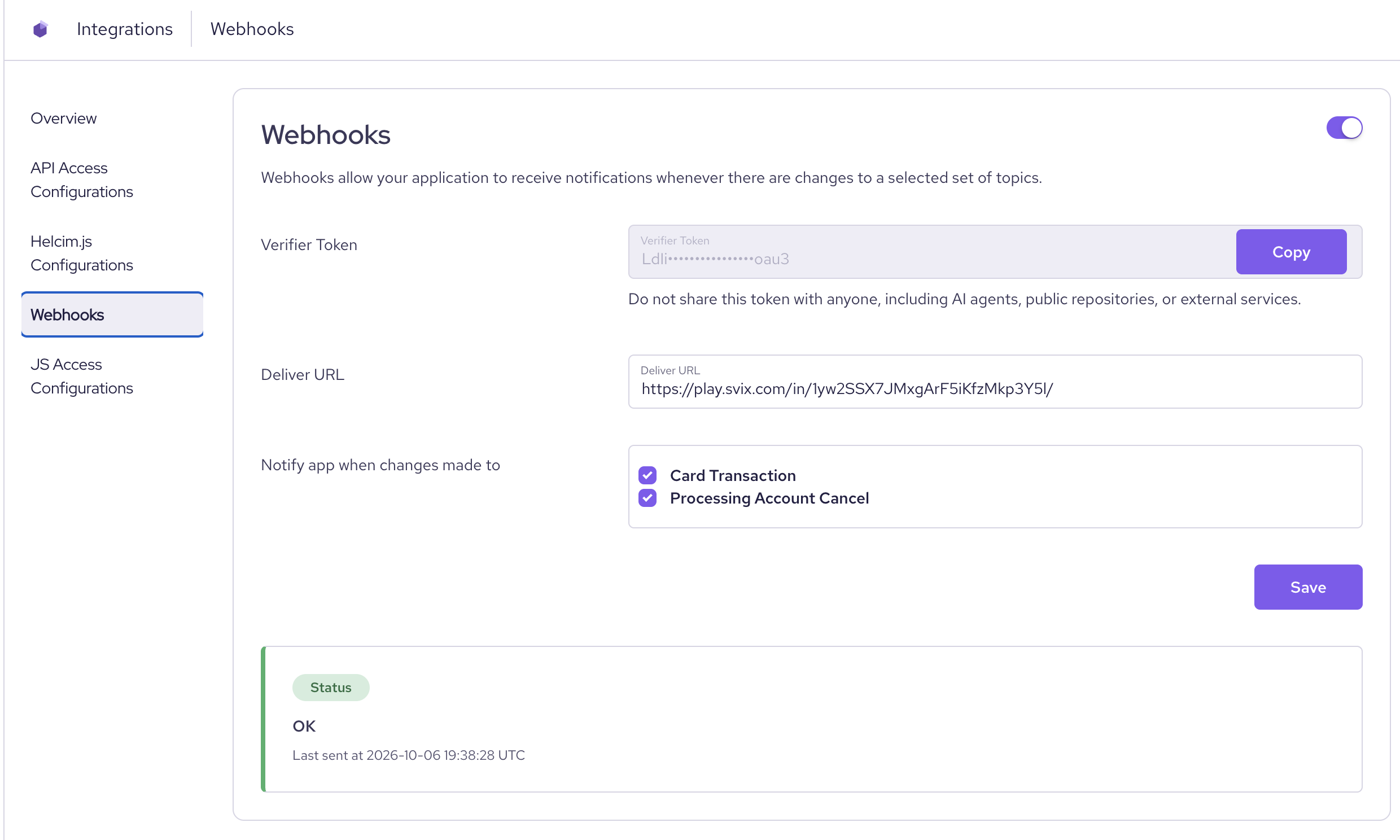
Follow these steps to enable and set up webhook events for your transactions:
- Log in to your Helcim account.
- Click
All Toolsand then selectIntegrations. - Click
Webhooks. - Toggle
Webhooks ON. - Enter your Deliver URL. This is the secure web address where you want us to send the webhook event.
URL connot cantain 'Helcim'Webhook URL Requirements: To keep your account and our system secure, your URL must use "https" and cannot contain the word "Helcim."
- Select the webhook event(s) that you would like to receive.
- Card Transaction
- Processing Account Cancel
- Click
Save
Webhook events
Once a payment is proccessed through Helcim, we send a POST request to your URL. This request will include the following responses:
- the unique ID for the transaction
- the event type
cardTransactiontriggered when a card transaction occurs on the merchant account.-
terminalCancelfor payments that are cancelled on the device before processing.
Event typesThis request will only be run if the event type's corresponding option is enabled on the Integrations – Webhooks page.
Example webhook event payloads
// headers
webhook-signature:v1,CsvqmJB7JYdg74tlxbIdXe63H62QMOrMALNw51V/uYU=
webhook-timestamp:1716412291
webhook-id:msg_2gq5VYqF4DlzM66mCpaXtsEBAkp

// body
{
  "id":"25764674",
  "type":"cardTransaction"
}
// headers
webhook-signature:v1,CsvqmJB7JYdg74tlxbIdXe63H62QMOrMALNw51V/uYU=
webhook-timestamp:1716412291
webhook-id:msg_2gq5VYqF4DlzM66mCpaXtsEBAkp
// body
{
"data":{
"cancelledAt":"2026-01-14T18:38:18Z",
"currency":"CAD",
"customerCode":"",
"deviceCode":"NBL7",
"invoiceNumber":"",
"transactionAmount":1
},
"type":"terminalCancel"
}Verifying a webhook event
Security is a top priority for Helcim. We sign every webhook with a unique signature in the header using HMAC with SHA-256. To ensure the data is really from Helcim, you should verify this signature using your verifierToken, which you can find in your webhook settings.
To verify the expected signature in the webhook event, you should HMAC the signedContent. This value should be the webhook-id, webhook "${webhook_id}.${webhook_timestamp}.${body}" using the base64 of your signing verifierToken, found in your webhooks settings section of your Helcim account.
The value returned by this function should match the webhook-signature value returned in the heading of the event. If the signature you calculate does not match the one in the header, you should ignore the request to keep your system safe.
const crypto = require('crypto');

// list of space delimited signatures and their corresponding version identifiers. The signature list is most commonly of length one. Though there could be any number of signatures.
let webhook_signature = "v1,g0hM9SsE+OTPJTGt/tmIKtSyZlE3uFJELVlNIOLJ1OE= v2,MzJsNDk4MzI0K2VvdSMjMTEjQEBAQDEyMzMzMzEyMwo="

// The content to sign is composed by concatenating the id, timestamp and payload, separated by the full-stop character (.)
signedContent = `${webhook-id}.${webhook-timestamp}.${body}`
const verifierToken = "CHANGE_ME";

// Need to base64 decode the verifierToken
const verifierTokenBytes = new Buffer(verifierToken, "base64");

// This generated signature should match one of the ones sent in the webhook-signature header.
const signature = crypto
  .createHmac('sha256', verifierTokenBytes)
  .update(signedContent)
  .digest('base64');

// check that signature matches the signature sent from the header of the webhook event
// signature == "g0hM9SsE+OTPJTGt/tmIKtSyZlE3uFJELVlNIOLJ1OE="
// signature == "MzJsNDk4MzI0K2VvdSMjMTEjQEBAQDEyMzMzMzEyMwo="
Webhook event schedule
If your server is busy and cannot receive the message right away, don't worry. We will try to send the notification again. We follow a schedule that starts with a retry after five seconds and continues for up to ten hours until your system responds to confirm it received the data with a success code (200-299).
A webhook that receives no confirmation response from your system is attempted based on the following schedule, where each period is started following the failure of the preceding attempt:
- Immediately
- 5 seconds
- 5 minutes
- 30 minutes
- 2 hours
- 5 hours
- 10 hours
- 10 hours (in addition to the previous)
For example, an event that fails to receive a response three times before eventually succeeding, will be delivered roughly 35 minutes and 5 seconds following the first attempt.
Retrieving transaction details
The card transaction webhook tells you that a transaction happened, but it doesn't include the full details like the amount or the card type.
To retrieve the full transaction details, use the id included in the webhook payload. This value represents the card transaction ID and can be passed to the Get Card Transaction by ID endpoint. The response contains the full transaction record, which you can use to complete the checkout flow in your system.
Updated 3 days ago