
Initiating a Purchase Transaction
Learn how to send payment requests from your software directly to your compatible Helcim payment hardware to start a credit or debit transaction.
Helcim makes it easy to connect your software to your payment hardware to process in-person payments. Once you have paired your compatible Helcim devices to your point of sale system by saving the device code, you can start a purchase transaction using the Payment Hardware API.
A purchase transaction sent to your payment hardware allows customers to pay using a credit card or a debit card.
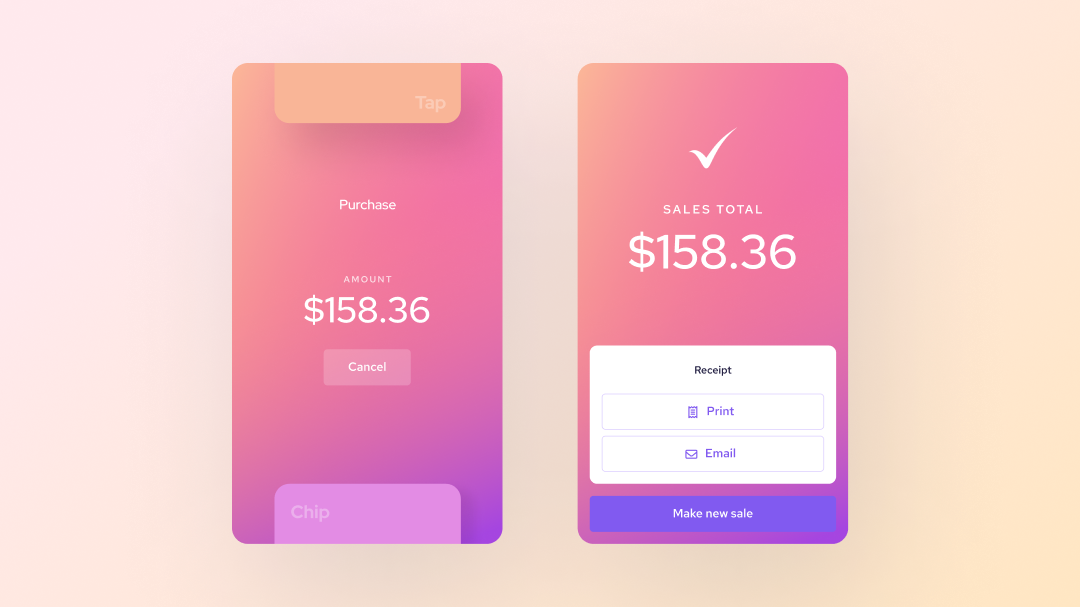
Building your purchase transaction request
To start a transaction from your software, your secure back-end server must send a POST request to the Payment Hardware API Start a Purchase endpoint.
| Parameter | Type | Description |
|---|---|---|
api-token | string | The API token for your Helcim account, sent in the header to authenticate your request. |
code | string | The four character alphanumeric device code for the payment hardware that should receive the request (E.g., DY6L). |
currency | string | The currency of the transaction. This should match the core currency of your business location. (E.g., Canadian merchants = CAD and United States merchants = USD). |
transactionAmount | number | The amount that you would like to process, to two decimal places (E.g., 10.99). |
invoiceNumber | string | You can link the payment to an existing invoice using the invoice number, or create an invoice with a specific invoice number by passing a new value. If you leave this out, our system will create an invoice for you. |
customerCode | string | You can link the payment to an existing customer using the customer code, or create a customer with a specific customer code by passing a new value. If you leave this out, our system will create a customer for you. |
When your request is successful, the payment hardware will light up and ask the customer to pay. The customer can then tap their card or use chip and PIN to finish the payment.
Example purchase request
You can build your request in several different coding languages. Here is an example using JavaScript:
const options = {
  method: 'POST',
  headers: {
    accept: 'application/json',
    'content-type': 'application/json',
    'api-token': 'YOUR_API_TOKEN'
  },
  body: JSON.stringify({currency: 'CAD', transactionAmount: 100.99})
};

fetch('https://api.helcim.com/v2/devices/DEVICE_CODE/payment/purchase', options)
  .then(response => response.json())
  .then(response => console.log(response))
.catch(err => console.error(err));Note on overlapping requests: The Payment Hardware API does not use a queue. If you send a second request to the same device while a customer is still finishing an in progress payment, the second request will be discarded. Ensure your software has received a valid webhook before sending a new request to a device.
Purchase transaction responses
202 Accepted: Returned when a request to the Payment Hardware API was formed correctly and processed. Does not indicate that the requested action was completed.403 Unauthorized: Returned when theapi-tokensent in the header of your request was incorrect, or does not have the valid permissions to complete the request.404 Device Not Found: Returned when thecodesent in the path parameters was not found by the API. This is likely the result of an incorrectcodebeing sent in the request, or the device has not yet been registered with the Helcim system.409 Device Not Listening: Returned with thecodesent if the path parameter exists in our system and is registered to your account, but the device is not reachable. This is likely due to the device being powered off, not logged, or being asleep.500 Internal Server Error: Returned when the Payment Hardware API has encountered an unknown error when trying to process your request.
Frequently asked questions
Where can I find these transactions in my account?
Payments made through the Payment Hardware API will show up in the transaction list found in your Payments tool. The source will be listed as "Helcim Card Reader" so you can easily filter your transaction list.
How do I handle cancelled payments?
Sometimes a customer might press the "Cancel" button on the payment hardware, or the device might lose its connection. In these cases, the devices will show that the payment was not completed. We recommend using terminal cancel webhook events to be notified when a payment has been cancelled on the device.
Updated 10 months ago