
Turning Pairing mode on and off
Learn how to enable or disable the connection between your software and your Helcim hardware to start taking integrated payments.
Helcim gives you the flexibility to choose how you interact with our systems. You can enable Pairing mode to allow your existing software to communicate directly with compatible Helcim devices through the Payments Hardware API, or disable it to utilize the built in Helcim point-of-sale application.
How to manage Pairing mode
To switch to pairing mode, you must have appropriate permissions. From there you can toggle between Pairing mode and Standalone mode directly from the Helcim devices.
Switch Pairing mode on or off
Follow the preferred set of instructions below to manage how your payment hardware connects to your account.
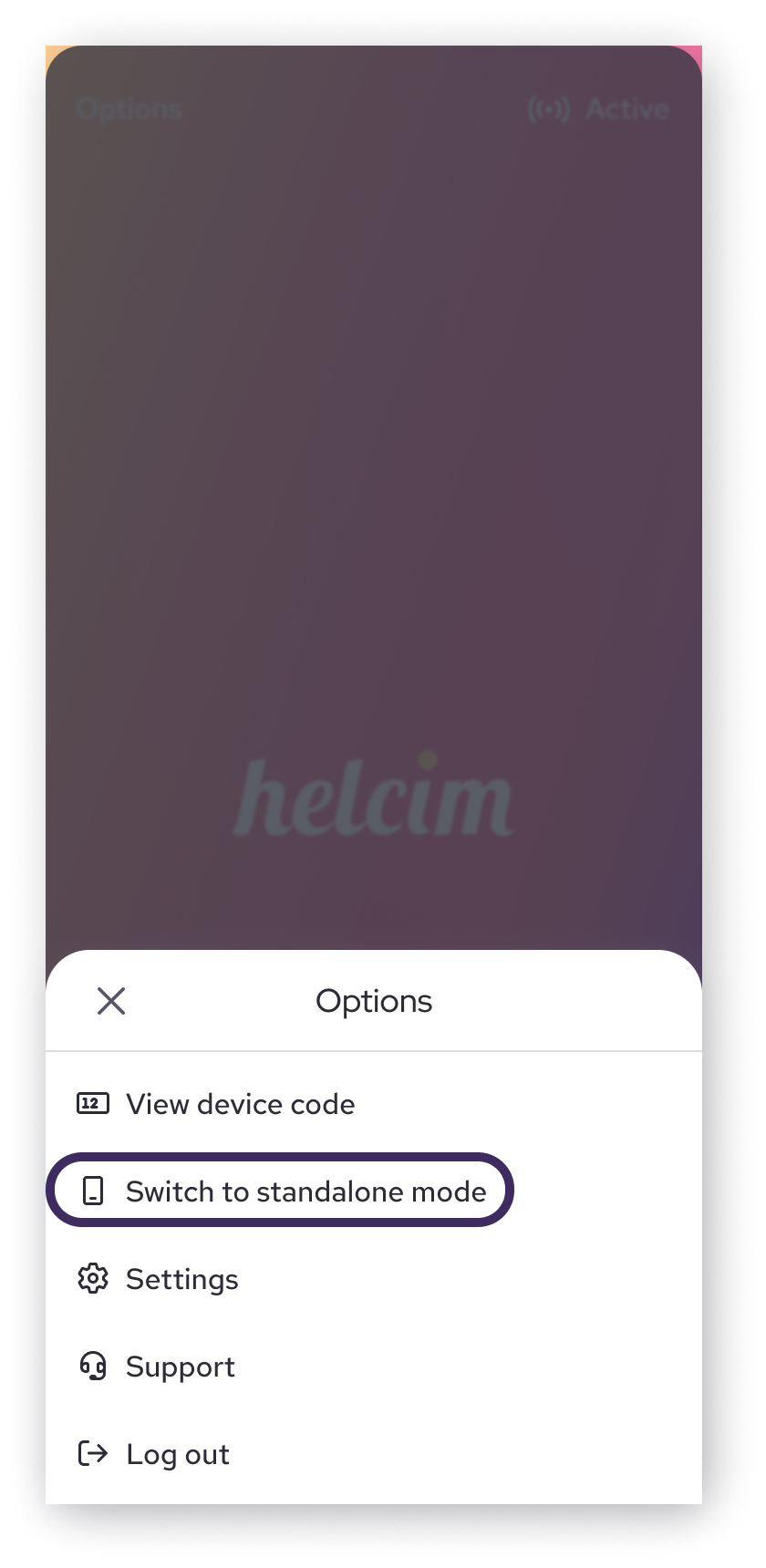
Through your Helcim Smart Terminal device:
- Log in to your Helcim Smart Terminal
- Select
Switchfrom the bottom row - Enter shown device code in your software and click
Continue - If no device code is shown, click
optionsin the top left to view the device code - Device is now in
pairing mode, and is ready to take a payment - To return to standalone mode -
Options,Switch to Standalone mode
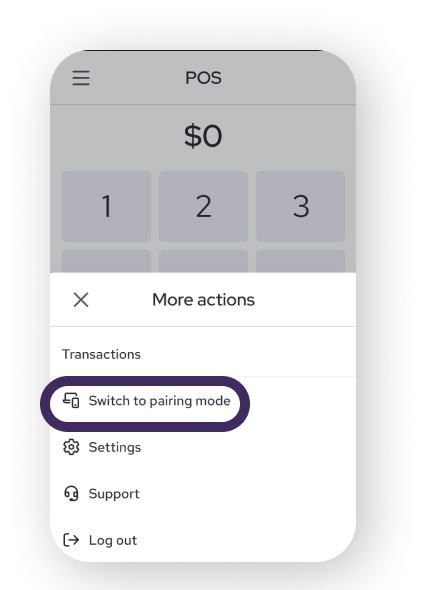
Through your Helcim Card Reader device:
- Login in to your Helcim Card Reader
- Select the
3-lines option menu - Select
Switch to pairing mode - Enter shown device code in your software
- If no device code is shown, click
optionsin the top left to view the device code - Device is now in
pairing mode, and is ready to take a payment - To return to standalone mode -
Options,Switch to Standalone mode
Common questions
Does Pairing mode work with in-person Fee Saver?
Yes, Pairing mode works with our Fee Saver feature. If In-person Fee Saver is enabled, Helcim devices will automatically calculate and show the surcharge amount and screen to your customers during checkout.
Will my existing device settings still work?
Yes. Even in Pairing mode, your devices will follow your previous settings, such as:
- Automatically printing receipts.
- Printing a merchant copy for your records.
To change your device settings, return to Standalone mode, to access full setting options.
What if I only want Pairing mode on some of my devices?
Each device can be toggled for either Pairing or Standalone mode on the physical device.
What happens when I turn Pairing mode off?
Any requests sent from your software to the Payments Hardware API will be declined with an error response If device is not listening in Pairing mode. You can view our guide on errors and error handling to learn more about these responses.
Will my devices keep their device codes if I toggle the Pairing mode setting?
Yes. Your payment hardware stores its unique device code in its hardware settings. If you turn Pairing mode off and then turn it back on later, your existing codes will still work.
Will my devices keep their device codes if I toggle the Pairing mode setting?
Standalone mode is the default Helcim interface to process payments.
Updated 3 months ago
What’s Next
Go through the registration process for your API mode enabled Smart Terminal devices